Portable Monitor Ergonomics for Remote Work Travel Setups in 2026
A practical portable-monitor setup guide for hotel desks, coworking tables, eye comfort, cables, power, and meeting reliability.
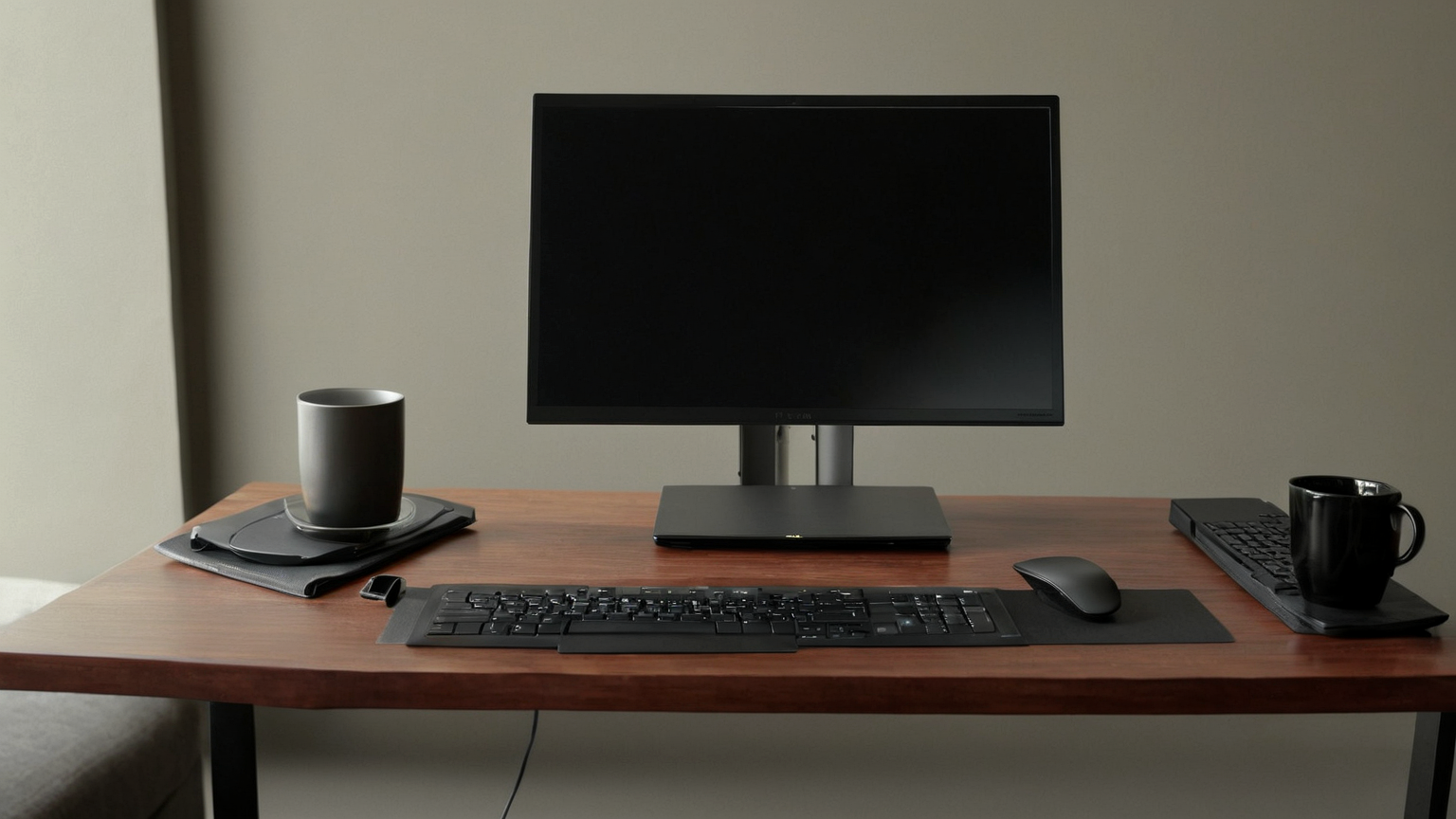
Updated June 6, 2026. A portable monitor can turn a hotel desk or coworking corner into a usable workstation, but it can also create a new set of problems: low screen height, twisted neck posture, cable clutter, glare, insufficient power, and awkward video calls. The goal is not to build a perfect office in a backpack. The goal is to reduce the biggest ergonomic and reliability risks during travel work blocks.
The quick setup decision
Before opening every device, decide what work block you are actually doing.
| Work block | Main risk | Best setup priority |
|---|---|---|
| Writing or analysis | Neck flexion and eye fatigue | Raised main screen, external keyboard, predictable breaks |
| Video meetings | Camera angle, glare, audio reliability | Stable screen placement, blank background, headset, power check |
| Spreadsheet or design review | Twisting between screens | Align screens side by side and keep the primary view centered |
| Short admin session | Overbuilding the desk | Use one screen, keep cables simple, finish quickly |
A second screen is most helpful when it prevents constant window switching. It is less helpful if it forces you to look down, twist, or lean forward for hours.
1. Put the primary screen at eye-friendly height
OSHA’s computer-workstation guidance emphasizes monitor placement, neutral posture, and avoiding awkward reach. On the road, you rarely control desk height, chair quality, or lighting. You can still control the relationship between your eyes, screen, and hands. Raise the screen you will look at most. If the portable monitor is your primary screen, place it on a stable stand or riser and keep the laptop lower or to the side. If the laptop stays primary, use the portable monitor only for reference material.
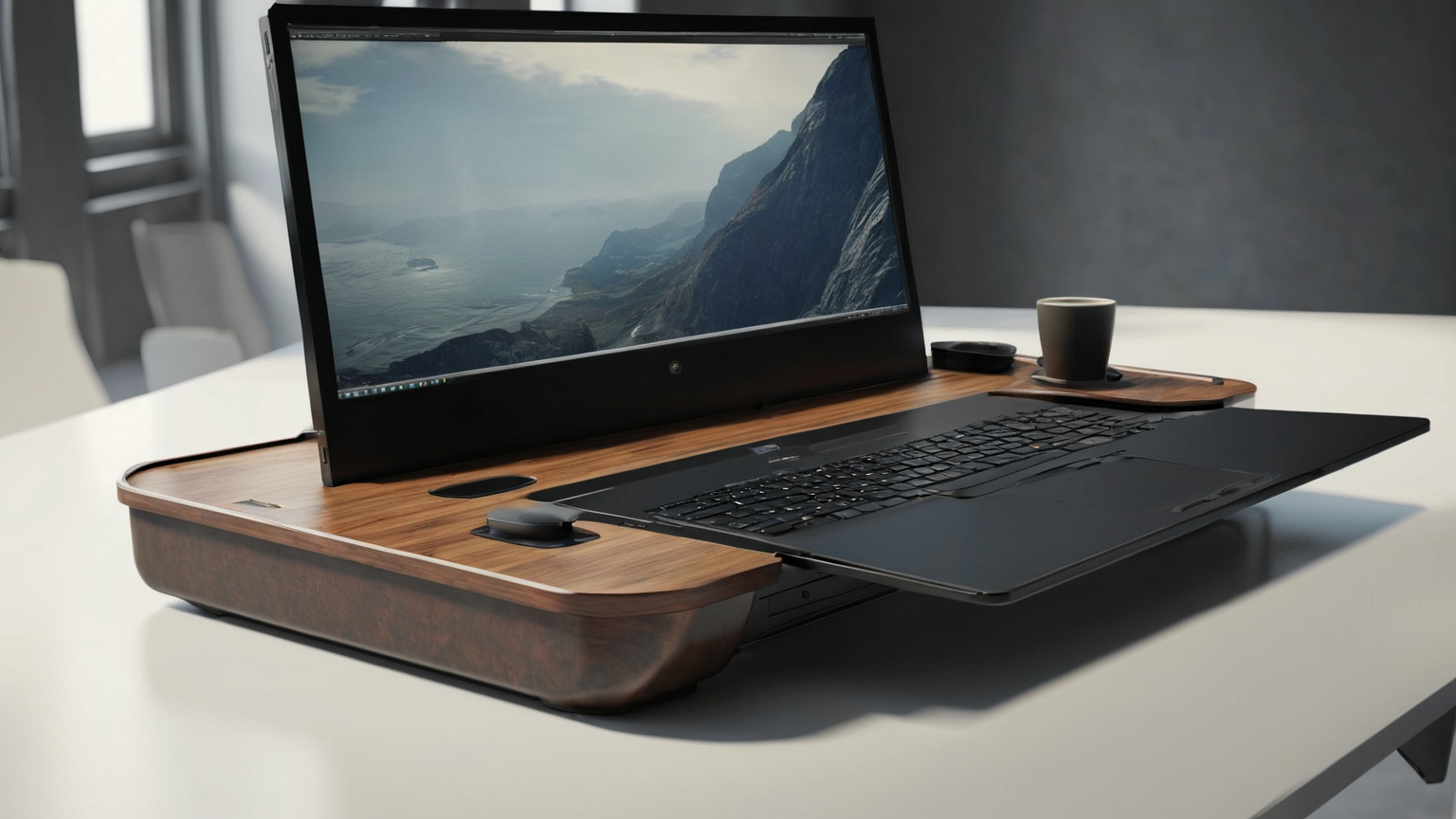
Keep the keyboard and pointing device separate when possible. A raised laptop with its built-in keyboard forces shoulders and wrists into a poor compromise. A compact external keyboard and mouse usually give more benefit than a larger monitor.
2. Make the cable plan boring
Portable monitors often rely on USB-C for power and display. That simplicity disappears when one cable cannot provide enough power, a hotel outlet is behind furniture, or the cable crosses your mouse path. Use the shortest safe cable that reaches without tension. Avoid running cords under chair legs or across walkways. If you need a charger, use a known safe unit with enough power for the laptop and monitor, and do not daisy-chain extension cords.
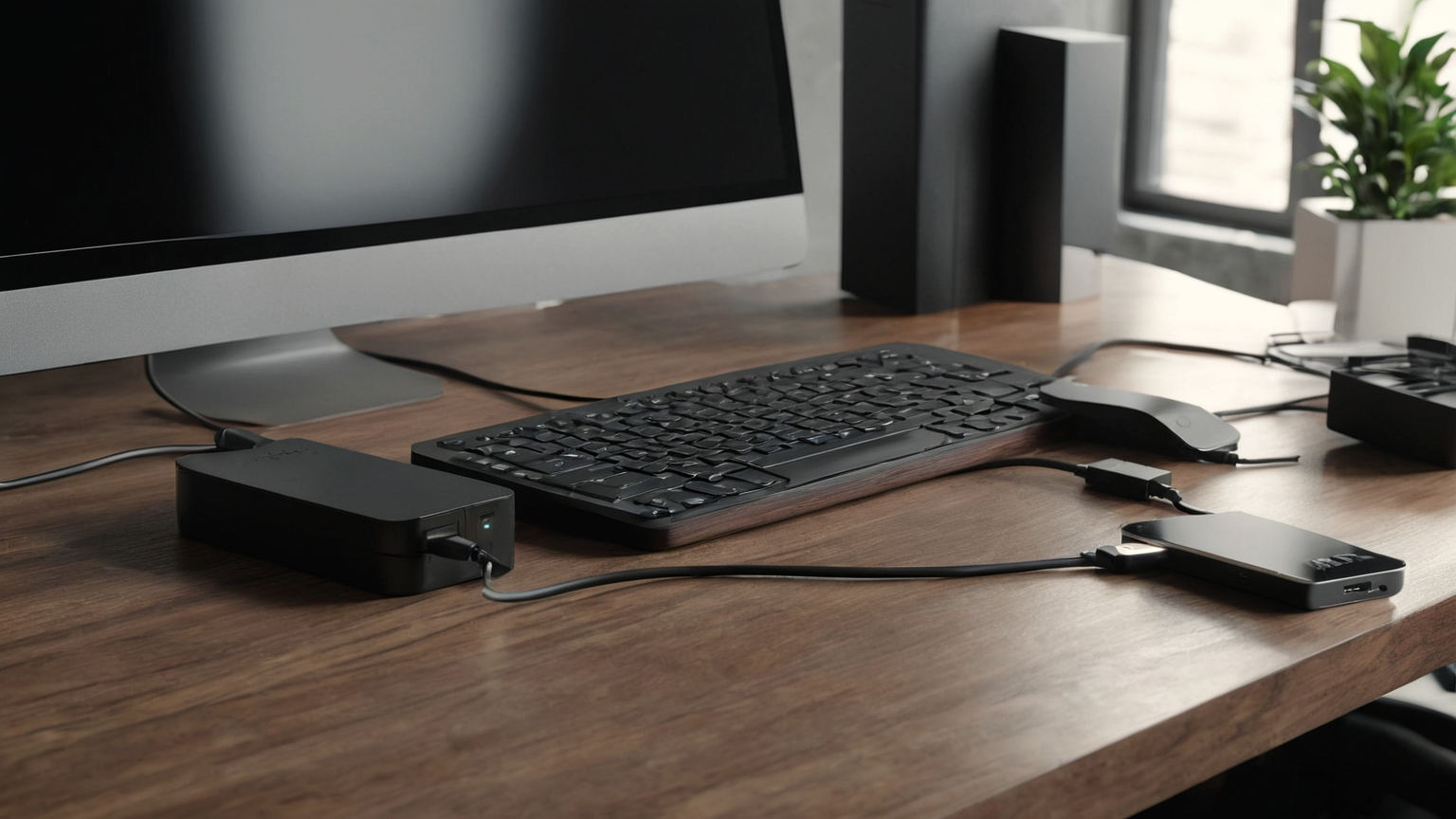
A practical cable checklist:
- One tested USB-C cable for display.
- One backup cable or adapter if the monitor supports it.
- A charger that can power the laptop under load.
- A small pouch so cables do not bend sharply in transit.
- A setup photo of your working configuration, useful when rebuilding quickly.
3. Control glare before changing brightness
Travel desks are often near windows, glossy art, lamps, or mirrors. Increasing brightness may help visibility but can worsen eye fatigue and battery use. First rotate the desk position if possible, close a sheer curtain, move a lamp, or switch the monitor to the side with less reflection. Then adjust display scaling and text size so you are not leaning forward.
Modern operating systems include accessibility and display settings for text size, contrast, scaling, and color. Use them. A portable monitor with tiny text is not a productivity tool; it is a neck and eye strain trap.
4. Build a meeting layout that does not fake professionalism
For video calls, the best portable-monitor setup is the one that keeps you present, audible, and not distracted by technical failures. Put the camera near the screen where the meeting window will sit. Use a headset if the room echoes. Keep the second screen for notes, agenda, or reference material, but do not place sensitive client or internal information where it can appear in reflections or accidental screen shares.
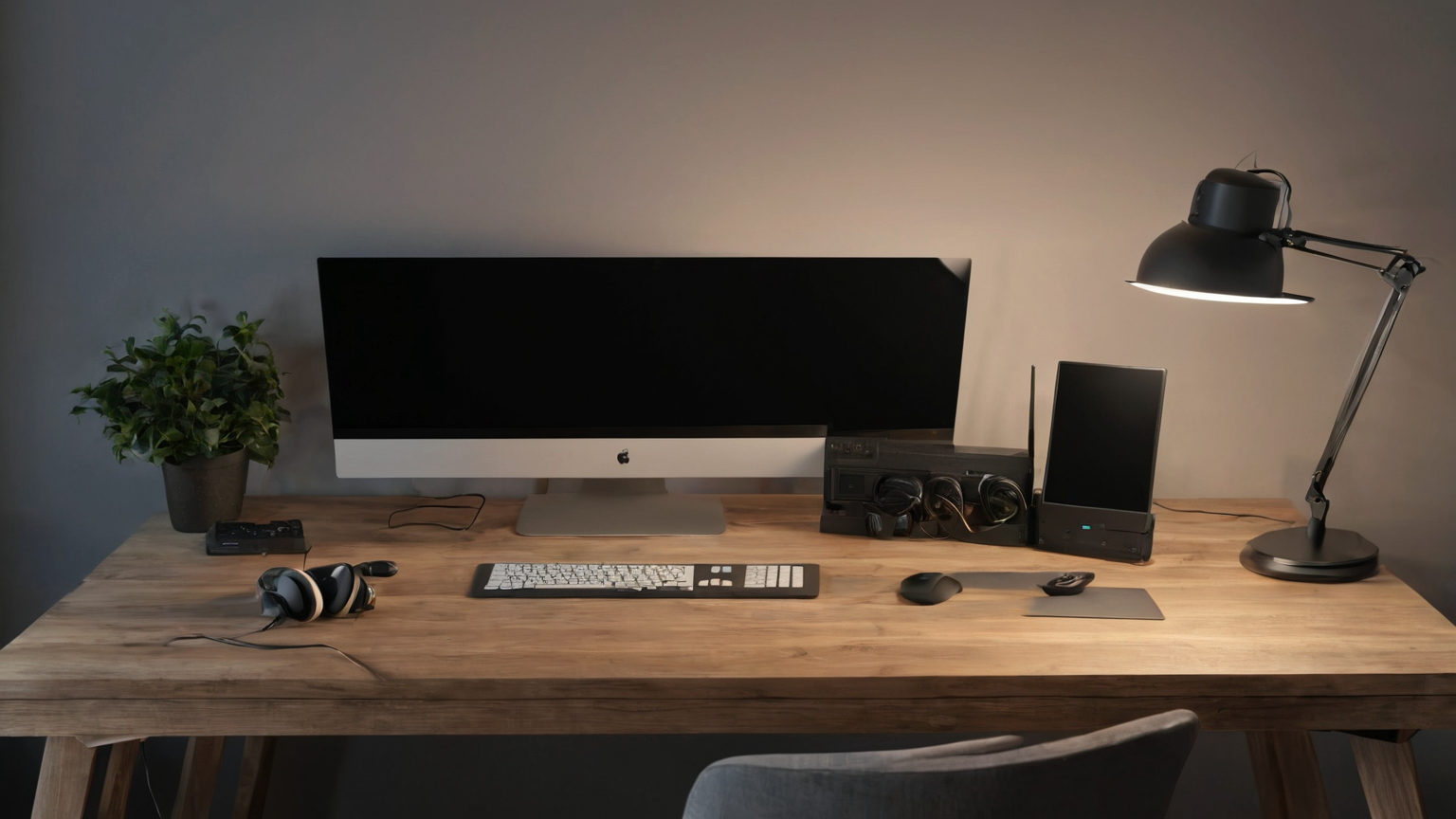
Meeting checklist:
| Item | Five-minute check |
|---|---|
| Camera | Is it stable and near eye level? |
| Audio | Does the headset work before joining? |
| Power | Can the laptop survive the meeting plus overrun? |
| Privacy | Are notes and notifications hidden from screen share? |
| Backup | Can you continue on laptop-only if the monitor disconnects? |
5. Pack for repeatability, not maximum gear
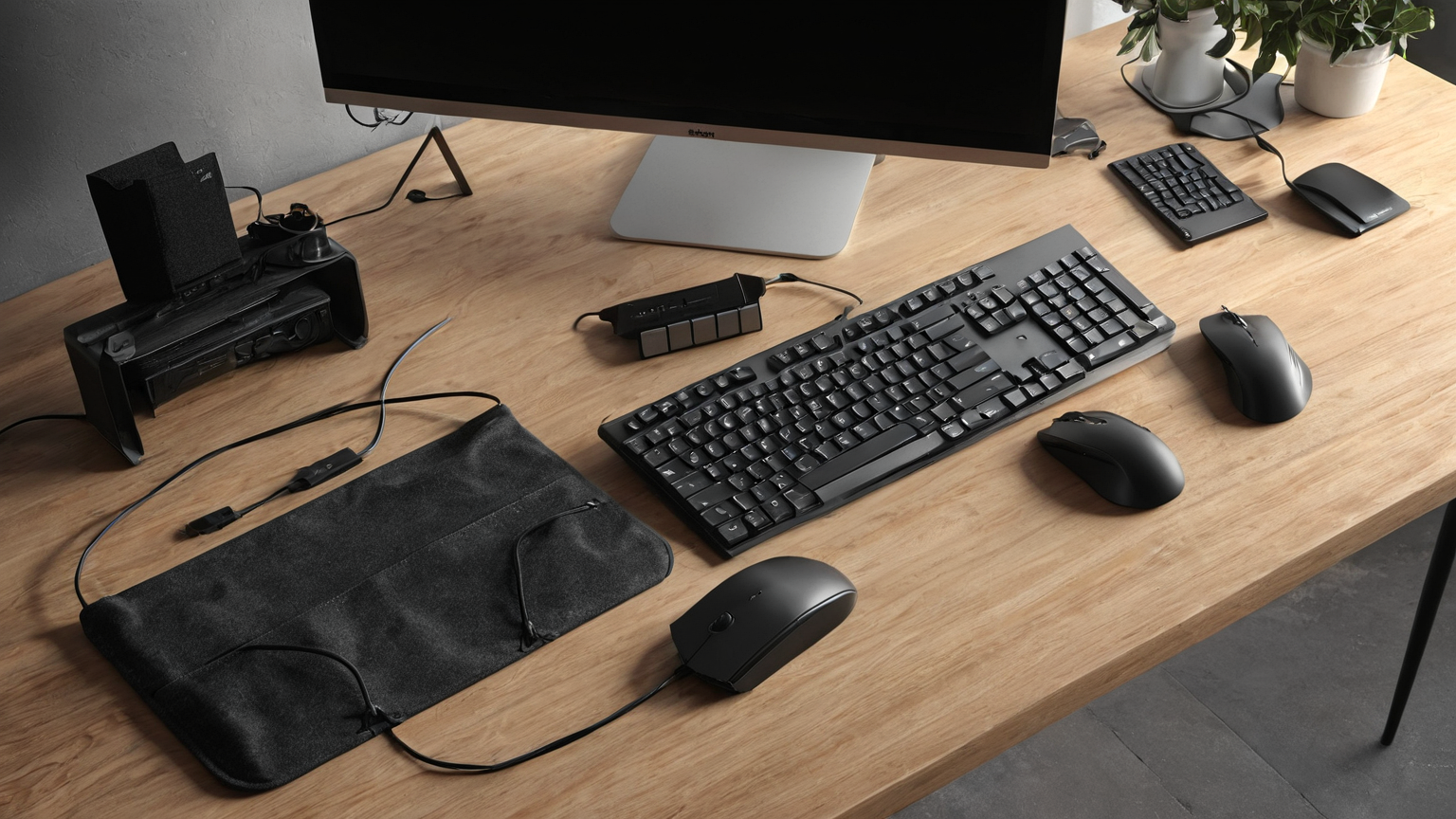
A good travel setup is repeatable under fatigue. Pack the monitor, stand, keyboard, mouse, charger, and cables in the same order every time. Use a sleeve or pouch so the screen is protected and accessories do not scratch it. If the monitor needs drivers or special settings, test after operating-system updates before an important trip.
6. Use breaks as a feature of the setup
Even a well-built workstation becomes tiring when you hold one posture for too long. Use natural breaks: after a meeting, close the laptop for two minutes; after a writing sprint, stand and look across the room; after a spreadsheet review, relax your shoulders and hands. The portable monitor should help you finish focused work with fewer awkward postures, not encourage longer unbroken sessions.
AdSense-readiness note
This guide avoids affiliate-style monitor rankings and focuses on official ergonomic principles, safety, and practical setup choices. It strengthens internal topical depth by linking heat, air-quality, and meeting-privacy guides. Next readiness gap: add a remote-work equipment maintenance checklist that covers updates, cable inspection, battery health, and secure disposal.